Seamless NuGet Publishing with GitHub Actions for Your Internal .NET Libraries
So you’ve got a .NET Class Library that you want to share across multiple internal projects. Maybe it’s a set of utility functions, shared domain models, or a framework you’ve built for consistency. Either way, you want a clean, private NuGet package delivery mechanism that doesn’t require you to manually distribute .nupkg files. GitHub Packages and GitHub Actions to the rescue.
Let’s walk through how to automate publishing your internal NuGet packages directly from your repository using GitHub Actions.
Isolate the Shared Library
In my setup, I maintain shared libraries in their own dedicated GitHub repositories. This makes dependency management, versioning, and reuse much simpler across the rest of my projects.
Step 1: Create a Classic GitHub Personal Access Token (PAT)
Before you can publish packages to GitHub Packages, you need a Personal Access Token (PAT) with the write:packages permission.
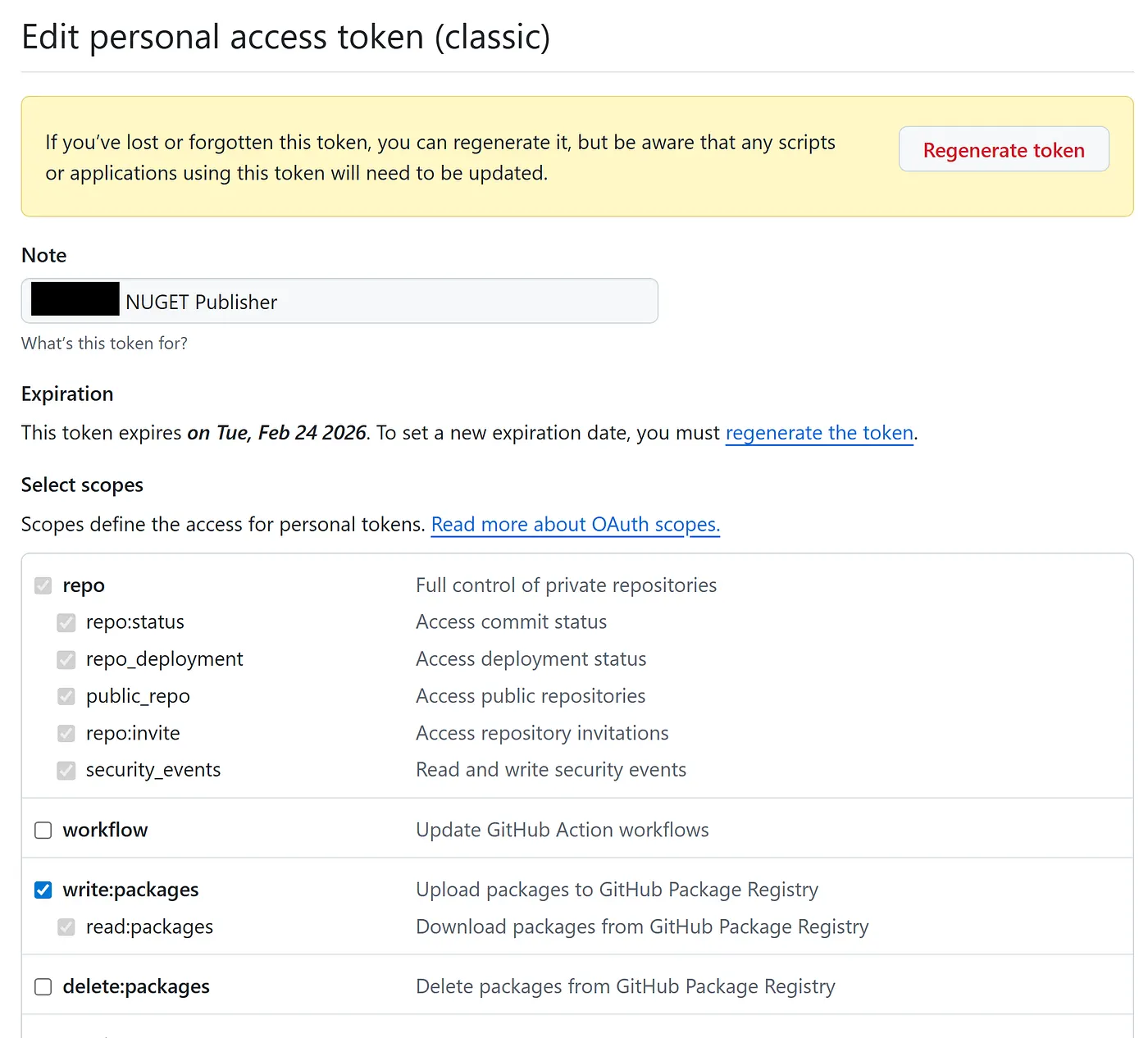
- Go to GitHub → Settings → Developer Settings → Personal Access Tokens.
- Generate a Classic PAT.
- Ensure it includes
write:packagesand repo scopes (if your repo is private). - Store the token somewhere safe — you’ll need to add it to your repository’s secrets.
In your repository, navigate to Settings → Secrets and variables → Actions → Secrets, and add your PAT under a name like NUGET_PUBLISH_PAT.
You need to ensure that this PAT has permissions to write:packages . This will allow you to publish nuget packages.
Step 2: Create the GitHub Actions Workflow
Now we’ll define the workflow to build and publish the NuGet package automatically whenever you push changes to your library.
Here’s the workflow file (.github/workflows/publish-nuget-bootstrapping.yaml):
name: Qonq.Framework.Bootstrapping

on:
  workflow_dispatch:
  push:
    branches:
      - main
    paths:
      - 'src/dotnet/Qonq.Framework.Bootstrapping/**'
      - '.github/workflows/publish-nuget-bootstrapping.yaml'

env:
  PROJECT_NAME: Qonq.Framework.Bootstrapping

jobs:
  publish:
    runs-on: ubuntu-latest

    env:
      # Simple auto-incrementing version: 1.0.<run_number>
      PACKAGE_VERSION: 1.0.$

    steps:
      - name: Checkout
        uses: actions/checkout@v4

      - name: Setup .NET
        uses: actions/setup-dotnet@v4
        with:
          dotnet-version: "9.0.x"

      - name: Add Nuget Source
        run: |
          dotnet nuget add source \
            --username USERNAME \
            --password $ \
            --store-password-in-clear-text \
            --name github "https://nuget.pkg.github.com/$/index.json"

      - name: Restore
        run: dotnet restore src/dotnet/$/$.csproj

      - name: Pack
        run: |
          dotnet pack src/dotnet/$/$.csproj \
            -c Release \
            -o out \
            -p:PackageVersion=$

      - name: Publish to GitHub Packages
        run: |
          dotnet nuget push "out/*.nupkg" \
            --source "https://nuget.pkg.github.com/$/index.json" \
            --api-key "$"
This workflow does the following:
- Triggers on pushes to the main branch or when manually dispatched.
- Watches for changes specifically to the class library or its workflow file.
- Uses the GitHub run number to generate a unique semantic version: 1.0.X.
- Restores, packs, and publishes the package to GitHub Packages.
I setup the paths so that any change to that class library’s .NET code or the GitHub Action Workflow would trigger a new package to be published.
Step 3: Semantic Versioning Strategy
To avoid version conflicts or manual version bumps, I adopted a simple strategy: 1.0.$. I setup the version of the Nuget package to follow a 1.0.X semantic versioning schema which uses the GitHub Run Number as the path version. This allows me to guarantee uniqueness no matter how many times the GitHub Action is run.
Every time the workflow runs, the github.run_number increments automatically, ensuring a unique version number for each build. This is great for internal use and simplifies automation. You can always switch to full semantic versioning later if needed.
Step 4: Viewing Packages in GitHub
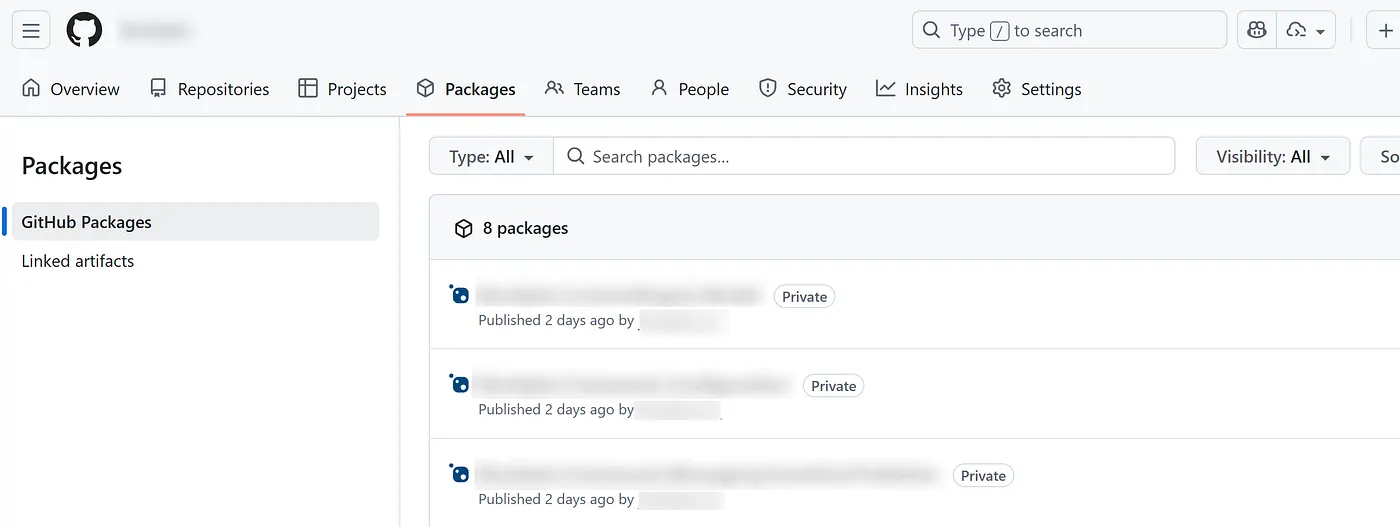
Once published, there’s usually a small delay, but the packages will start appearing under the Packages section of your GitHub repository or organization.
You can browse them by navigating to:
https://github.com/ORG_OR_USERNAME/packages
Step 5: Set Up Local Development Machines
This is the only slightly manual part — each developer must configure their local environment to restore packages from GitHub.
The following command adds GitHub Packages as a NuGet source:
dotnet nuget add source "https://nuget.pkg.github.com/FOOBAR/index.json" \
  --name FOOBAR-GitHub \
  --username "$(gh api user --jq .login)" \
  --password "" \
  --store-password-in-clear-text
Replace FOOBAR with your GitHub org or username and with your personal access token.
This will add an authenticated NuGet source that Visual Studio and the dotnet CLI can use during restore operations. Yes, it stores the PAT in plaintext on the machine — not ideal, but currently required.
I highly recommend installing the GitHub CLI. While GitHub Packages doesn’t yet support true secretless access for NuGet, the CLI makes setup easier and may be a path toward better authentication mechanisms in the future.
Conclusion
With just a little setup, you can fully automate internal NuGet publishing from GitHub using Actions. It saves time, ensures consistent builds, and provides a reliable distribution mechanism for shared .NET libraries. While the developer workstation setup isn’t perfect, the rest of the flow is smooth, repeatable, and easy to maintain.
Once this is in place, publishing shared code becomes as simple as committing to main.